JPG Upload Too Large for Job or School Portal? Fix Without Cloud Upload (2026)
2026-06-16 · 11 min read
HeicSave team
We test HEIC workflows on Windows 11, macOS, Chrome, and Edge before publishing. Editorial standards
Last updated: June 16, 2026
Short answer: When a portal says your JPG is too large, re-encode it locally with Compress JPG—pick the Form / portal scene preset (65% quality, max width 1280 px), check the before/after size in results, then upload the smaller file. Nothing uploads to HeicSave during compression.
We maintain HeicSave for this exact Reddit and Gutefrage pattern: someone finishes a job application or visa form, clicks upload, and gets “file exceeds maximum size” even though the photo looks fine on their phone.
Why portals reject “normal” JPGs
Phone cameras save 12–48 MP JPEGs. A single portrait at high quality can be 4–8 MB. Portals rarely tell you the pixel dimensions they want—they only show a megabyte cap.
| Portal type | Typical per-file cap | What they really need |
|---|---|---|
| US university application | 2–5 MB | Readable ID or headshot, not full resolution |
| UK gov / NHS forms | 2–4 MB | Document scan, not 48 MP portrait |
| EU job boards (StepStone, etc.) | 2–5 MB | CV photo or certificate scan |
| US state DMV / visa upload | 1–3 MB | Flat scan, often 1280 px wide is enough |
| School enrollment (K–12, EU) | 1–2 MB | Student photo, strict caps |
Caps change by season—always read the error message on the form itself. The table reflects what we see in support threads in 2026.
Cloud compressors vs browser-local
Most “compress JPG online” sites upload your file to their servers. That is a bad fit for passport scans, bank KYC photos, or medical receipts.
HeicSave re-encodes in your browser tab with WebAssembly and Canvas. Your bytes stay on your device—the same privacy model as our HEIC converters. Verify in DevTools: privacy guide.
Step-by-step: hit a 2 MB cap
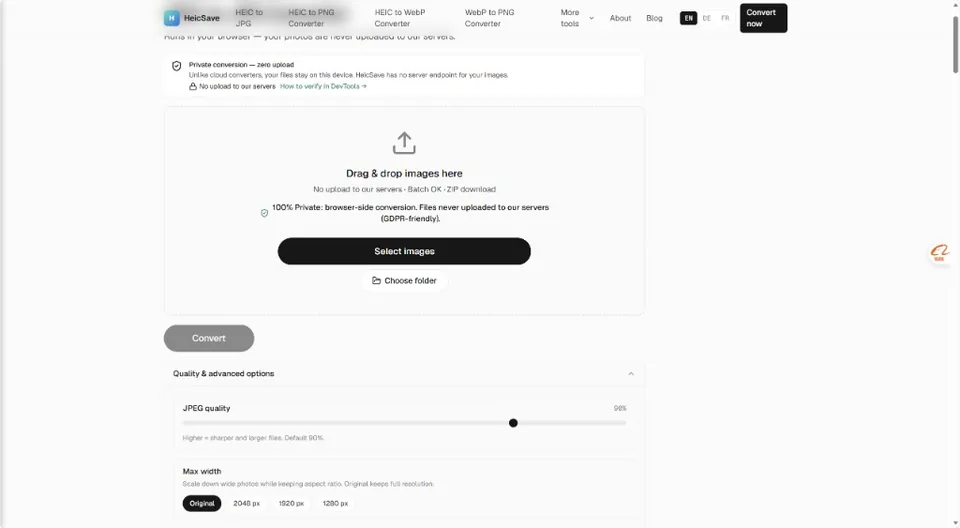
- Open Compress JPG in Chrome or Edge on desktop.
- Click the Form / portal scene preset (65% quality, max width 1280 px).
- Drag your oversized JPG into the drop zone.
- Click Compress and wait for the results list—it shows before → after size on each row.
- If still over the cap, switch to Smallest file (55%, 1280 px) or lower the quality slider manually.
- Download the JPG and retry the portal upload.
If the portal wants PNG instead
Some forms whitelist PNG but reject JPEG. Convert format first with JPG to PNG, then compress only if the PNG is huge (rare for photos). For screenshots with text, PNG is often required—see our JPG to PNG tool page.
If you started from iPhone HEIC
Convert HEIC to JPG first with HEIC to JPG, then compress the JPG output here. Two-step is normal when the portal accepts only JPG under 2 MB.
Scene presets map to real caps
The compress tool ships five one-click presets. Match them to your error message:
| Preset on HeicSave | Quality / max width | Good for |
|---|---|---|
| Form / portal | 65% · 1280 px | 2–5 MB job/gov/school caps |
| Email attachment | 75% · 1920 px | Outlook/Gmail total message limits |
| ID & document scan | 82% · 2048 px | Readable text on receipts or IDs |
| Chat & social | 70% · 1280 px | WhatsApp/Telegram sends |
| Smallest file | 55% · 1280 px | Under 1 MB tight caps |
After picking a preset, you can still nudge the quality slider—the UI switches to Custom so you know you changed the defaults.
Quality checks before you submit
Government and HR reviewers care about readable text, not megapixels.
- Zoom to 100% on the compressed JPG—can you read small print on a scan?
- Check file size in Explorer or Finder—under the portal cap with ~10% headroom?
- Keep the original JPG in a separate folder until the portal confirms acceptance.
Below 60% quality, watch for soft edges on document scans. Raise quality before shrinking width further.
Batch compress for multi-page forms
Some applications ask for front and back of ID, proof of address, and a headshot—each with its own cap. Add all JPGs in one session, compress with the same preset, download a ZIP, and upload files one by one.
On 8 GB RAM laptops, batches of 40–60 JPGs are usually fine. Refresh the tab if it slows down.
Troubleshooting
| Symptom | Fix |
|---|---|
| Still over 2 MB after Smallest file | Lower max width to 960 px manually; try 50% quality |
| Portal rejects “invalid format” | Wrong extension—confirm real JPG; try JPG to PNG if PNG required |
| Colors look dull | Slightly raise quality; do not re-compress an already compressed file twice |
| Portal wants PDF not JPG | This tool outputs JPG only—use a PDF scanner app for PDF uploads |
| Privacy concern | Use browser-local tools only—see DevTools verification |
Related guides
- HEIC email attachment rejected
- Batch HEIC to JPG workflow
- Privacy: browser-local conversion
- PNG to JPG for smaller attachments
Compress now: Compress JPG — scene presets, before/after sizes, no upload.